
Guide
How to make a 2 minute AI video from text, free
Most AI video models render only a few seconds at a time. This guide shows how to get a full two minute video from one written idea in FreeVideoGenerator: the studio plans the shots, chains each one out of the last frame of the previous shot so it plays as a single continuous take, and exports without a watermark. Screenshots below are from the live studio.
Step 1 — Open the studio and choose Video
Sign in free with email, Google or Apple — no card and no trial timer. The dashboard opens on a chooser: Video, Image / graphics, or Voice over. Pick Video for a text to video render with native voice and sound.

Step 2 — Write a prompt the model can film
Brief it like a camera operator: name the subject, the place, the light and the movement, and add what the viewer should feel. For a two minute piece, also say what changes over time — the arc is what fills the length.
Example prompt for a 2 minute video
“A young baker opens her small city bakery before sunrise. She kneads dough in warm window light, the first customers arrive, the shop fills with morning noise, and she ends the day locking up as the street lights come on. Cinematic, warm, slow camera moves, hopeful tone.”
Then set Style and Format. Landscape 16:9 suits YouTube and websites; portrait suits Reels, Shorts and TikTok. Choosing the ratio now avoids cropping a finished video later.
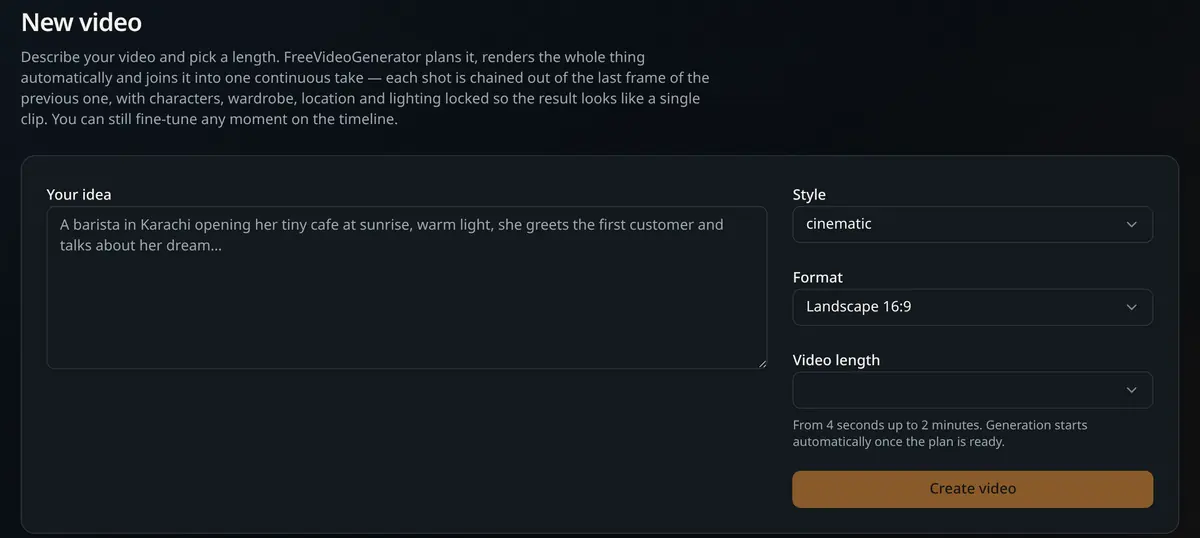
Step 3 — Pick the 2 minute length preset
Open Video length and choose 2 minutes (longest). The presets run from 4 seconds up to 2 minutes, so the same prompt can become a short social hook or a full story. Generation starts automatically once the shot plan is ready — you do not stitch clips yourself.
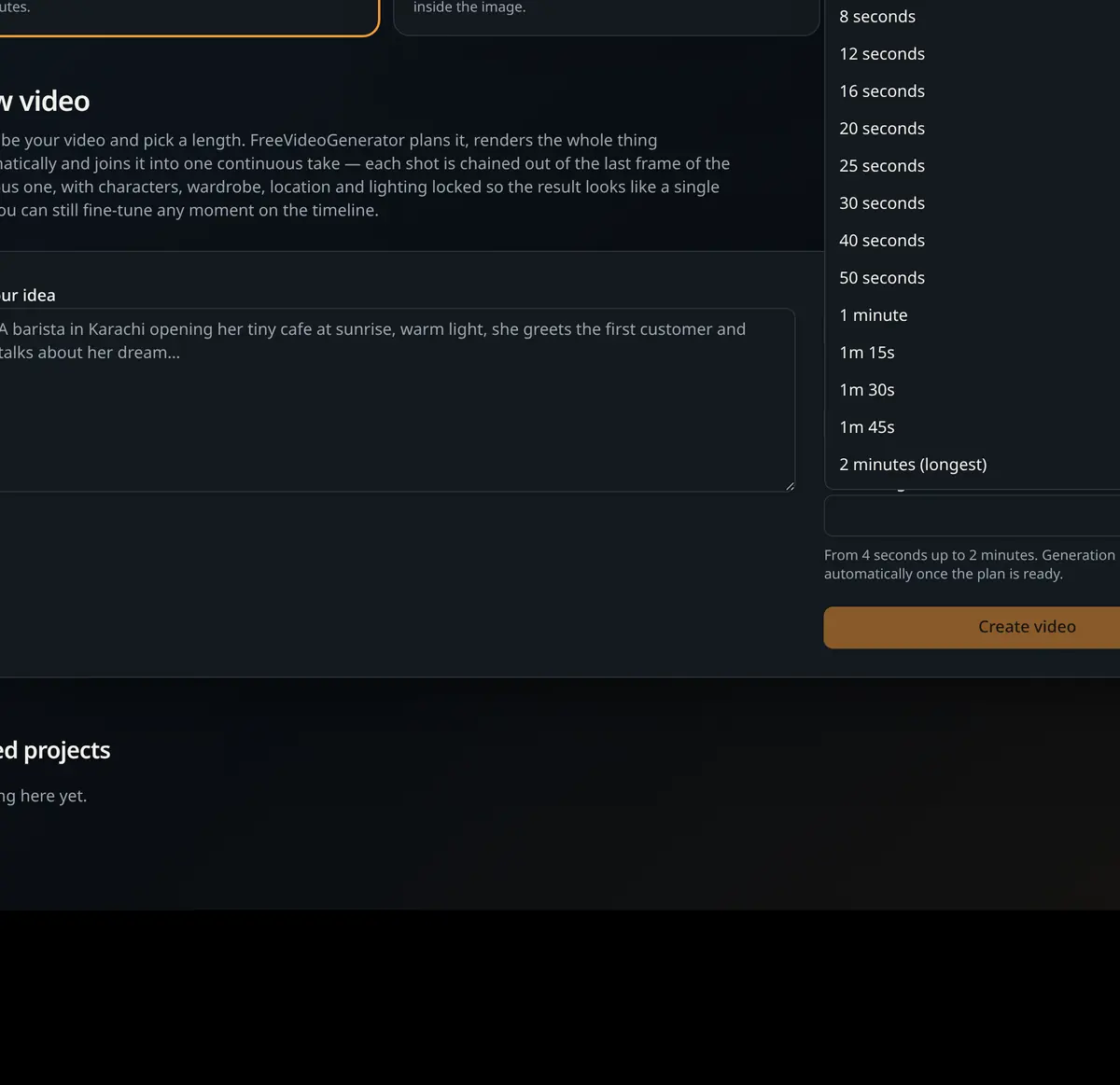
Pick the shortest length that still tells the story. 4 to 8 seconds is right for loops and ads, 30 to 60 seconds for explainers and demos, and 2 minutes for narrated stories, tutorials and brand films.
Step 4 — Review the timeline, then download
Shots render one after another and play back joined together. On the timeline you can retime or reorder a moment, or regenerate a single shot that missed the mark instead of rebuilding the whole video. When it plays the way you want, download it — the file is full quality with no watermark, and the project stays in your library.
Getting longer videos to look consistent
- Describe people once, precisely. Age, hair, clothing and colours stay locked across shots when they are stated clearly in the prompt.
- Keep one location and one time of day unless a change is part of the story; the shot chaining then reads as one continuous take.
- Name the camera language. “Slow push-in”, “handheld follow”, “static wide” give the two minutes rhythm instead of random movement.
- Layer a narration track. Generate the script with the free AI voice over generator and use [bracket cues] to shift emotion between sections.
- Make the thumbnail in the same session. The free AI image generator with no watermark renders the headline text straight into the artwork.
Common questions about 2 minute AI video
Is it really free?
Yes — no credit card, no export credits and no watermark on the download.
Do I have to join clips in an editor?
No. The shots render in sequence and are joined into one continuous take automatically; the timeline is there only if you want to adjust something.
How long does a 2 minute render take?
Longer than a short clip, because each shot is generated in order and chained to the previous frame. You can watch finished shots while the rest continue rendering.